



NAS Cloud Backup: Sync Your NAS with OneDrive and the Cloud
Quick answer: NAS cloud backup connects a network-attached storage device with an independent cloud destination, such as OneDrive. The goal is not simply to mirror files, but to maintain recoverable copies outside the NAS. A well-designed setup combines scheduled backups, versioning, encryption, access controls, and periodic recovery tests.
| Area | Recommended approach | Why it matters |
|---|---|---|
| Primary storage | NAS | Fast local access and centralized file management |
| Cloud destination | OneDrive or another suitable cloud service | Protects against local device failure and site-level incidents |
| Backup method | Scheduled cloud backup or synchronization with backup controls | Reduces manual work and keeps copies current |
| Recovery protection | Versioning and retained historical copies | Helps recover deleted, corrupted, or changed files |
| Security | Encryption, strong authentication, and least-privilege access | Limits exposure if an account or device is compromised |
| Testing | Periodic restoration tests | Confirms that stored copies can actually be recovered |
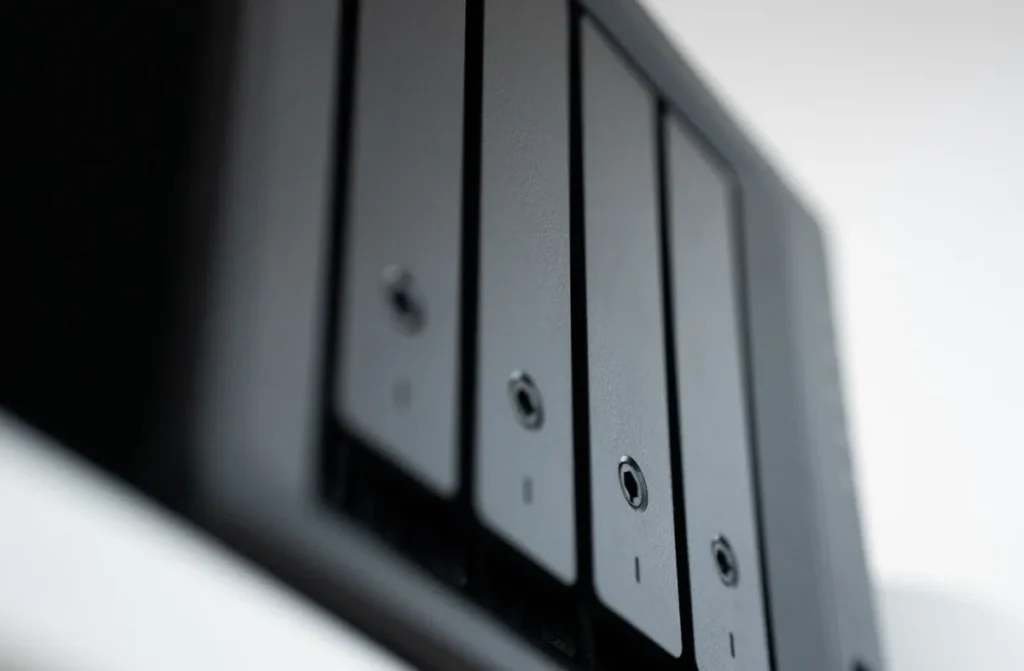
A NAS, or network-attached storage, is a storage device connected to a network so multiple computers and users can access files centrally. It can serve as a convenient local repository for documents, photographs, projects, media, and business data.
However, keeping important files only on a NAS leaves them exposed to risks that affect the NAS itself. Hardware failure, accidental deletion, ransomware, theft, fire, and configuration mistakes can all affect locally stored data.
That is where NAS Cloud Backup: Sync Your NAS with OneDrive and the Cloud becomes useful. The basic idea is straightforward: maintain a second copy of selected NAS data in an independent cloud environment.
Yet the implementation deserves more attention than simply connecting two storage locations. A reliable design must distinguish synchronization from backup, decide which folders need protection, control data movement, and establish a recovery process.
What Is NAS Cloud Backup?
NAS cloud backup is a method of copying data from a NAS to an external cloud storage destination. The cloud copy provides an additional recovery point if the original NAS becomes unavailable, damaged, encrypted, or accidentally altered.
Synchronization and backup are related but different. Synchronization generally tries to keep two locations aligned, while backup preserves recoverable copies according to a defined retention strategy.
This distinction matters because a destructive change can potentially propagate through a simple synchronization workflow. If a file is deleted locally and the system immediately mirrors that deletion, the cloud copy may not provide the historical protection expected from a backup.
Therefore, NAS Cloud Backup: Sync Your NAS with OneDrive and the Cloud should be designed around recovery rather than duplication alone.
Why Connect a NAS to OneDrive or Another Cloud?
The primary reason is geographic and operational separation. A cloud copy remains outside the physical NAS environment, creating protection against incidents that affect the local storage system.
For example, consider a household NAS containing several years of photographs. If the NAS fails, local recovery may require replacing hardware or restoring damaged drives. If the entire home is affected by theft or a serious physical incident, local copies may become inaccessible altogether.
A cloud destination introduces another location for protected data. Consequently, the storage architecture becomes less dependent on one physical device.
For organizations, the same principle applies to project files, administrative records, contracts, and other important information. The exact backup requirements vary, but the underlying objective remains consistent: reduce dependence on a single storage location.
NAS Cloud Backup Step by Step
1. Identify the data that actually needs backup
Start by deciding what must be recoverable. Do not automatically send every NAS folder to the cloud without considering storage requirements, sensitivity, and recovery priorities.
Separate essential information from replaceable data. Personal documents, irreplaceable photographs, financial records, project files, and important archives may deserve stronger protection than temporary downloads or easily recreated media.
Creating this classification first also makes the later configuration easier. It prevents unnecessary cloud usage and clarifies which files require longer retention.
2. Check the NAS storage structure
Review the shared folders, permissions, file sizes, and directory structure before creating the backup task. Remove obsolete data where appropriate, because unnecessary files can increase transfer time and storage consumption.
Also identify files that may be locked, frequently changing, or generated automatically. Such files may require special handling depending on the backup application and NAS platform.
A clean source structure reduces ambiguity and makes restoration more predictable.
3. Choose backup rather than simple mirroring when recovery matters
If the goal is genuine data protection, prioritize a workflow that supports historical versions or retained backup copies. A pure mirror can reproduce both useful and harmful changes.
For example, ransomware could encrypt a large collection of files on the NAS. A real-time mirror might transfer those encrypted versions to the cloud. A versioned backup can provide older recovery points instead.
This is one of the most important distinctions in NAS Cloud Backup. The cloud copy should have a recovery purpose, not merely a second location.
4. Connect the NAS to the cloud account
Most NAS platforms provide applications, synchronization tools, or backup utilities for connecting local storage with cloud services. The exact interface differs between manufacturers and software versions.
Use the official authentication flow provided by the NAS software and cloud provider. Avoid sharing passwords directly with third-party scripts unless the design explicitly requires it and security implications are understood.
Where supported, use an account or permission scope dedicated to the backup task. Limiting access reduces the potential impact of compromised credentials.
5. Select the folders and destination carefully
Map each NAS source folder to a clearly defined cloud destination. Avoid vague configurations that make it difficult to determine where particular files are stored.
A practical structure might separate photographs, documents, projects, and archives. Consistent naming helps during recovery, especially when many folders exist.
Before starting a large transfer, verify the direction of data movement. A mistaken synchronization direction can overwrite or remove data instead of protecting it.
6. Set a schedule that matches the data
Not every dataset needs continuous synchronization. Frequently changing business documents may require more frequent protection, while static archives may only need scheduled backups.
Choose a schedule according to how much recent data you could afford to lose. This is commonly described through the recovery point objective, or RPO.
RPO means the maximum acceptable amount of recent data loss measured in time. For example, an RPO of 24 hours implies that losing the latest day’s changes may be tolerable within the chosen recovery plan.
7. Configure retention and versioning
Retention determines how long previous backup versions remain available. Versioning allows recovery from an earlier state instead of only the newest copy.
Consider keeping several recent versions and fewer older versions when storage costs or capacity are limited. The appropriate policy depends on the importance and change rate of the data.
Retention also protects against delayed discovery. If corruption remains unnoticed for several days, a system with only the latest copy may have limited recovery options.
8. Protect the connection and cloud account
Cloud backup creates another account that must be secured. Use strong authentication, limit administrative privileges, and review account access periodically.
Encryption should also be considered. Encryption protects data by transforming it into a form that requires an appropriate key to read.
For sensitive information, determine whether encryption occurs before transmission, during transmission, while stored, or at several stages. Also understand who controls the encryption keys.
9. Run the first backup and inspect the result
The first backup may take considerably longer than later jobs because the initial dataset must be transferred. Do not assume completion simply because a task reports that it started successfully.
Check the task logs, transferred file counts, errors, skipped items, and destination structure. Investigate unexpected exclusions before considering the backup operational.
A successful backup job is not merely one that finishes. It should produce a usable and understandable recovery set.
10. Test restoration
A backup is useful only when its data can be recovered. Therefore, restoration testing should be part of the initial setup rather than an afterthought.

Select several representative files and restore them to a separate location. Verify filenames, folder structure, timestamps where relevant, and file integrity.
For critical environments, test a larger recovery scenario periodically. This can reveal permissions problems, missing files, obsolete credentials, or retention settings that were never noticed during normal operation.
Synchronization vs. Backup: Which Concept Matters More?
Backup and synchronization solve different problems. Synchronization focuses on keeping datasets aligned, while backup focuses on preserving recoverable historical copies.
A synchronized folder can be useful when users need access to the same files from multiple environments. However, synchronization alone should not automatically be treated as a disaster-recovery system.
For NAS Cloud Backup, this distinction should shape the configuration from the beginning. If recovery is the priority, retention and historical versions deserve explicit attention.
One useful approach is to use synchronization for selected active files and a separate backup mechanism for critical datasets. This separates collaboration needs from disaster-recovery needs.
How Much NAS Data Should Go to the Cloud?
The answer depends on data value, available bandwidth, cloud capacity, privacy requirements, and recovery objectives. There is no universal percentage that suits every NAS.
Begin with irreplaceable information. Then consider operationally important files that would be expensive or time-consuming to recreate. Finally, evaluate whether large replaceable datasets justify their cloud storage and transfer requirements.
Large media collections require particular attention. A NAS may contain terabytes of video or other files that are convenient to store locally but costly or slow to transfer repeatedly.
For these datasets, consider whether the cloud copy needs frequent updates or whether periodic archival protection is sufficient.
Bandwidth and Initial Upload Planning
The first cloud backup can place significant demand on an internet connection. Upload duration depends on data volume, upstream bandwidth, service limits, and other network activity.
For instance, a small document collection may complete quickly, while hundreds of gigabytes can require substantially more time. Scheduling the initial transfer during quieter periods can reduce its effect on normal network use.
After the initial transfer, incremental jobs can be much smaller because only changed or newly selected data may need processing. However, the exact behavior depends on the backup software and configuration.
Monitoring transfer logs helps identify repeated uploads, failed files, throttling, or unexpected changes.
Security Risks to Consider Before Using NAS Cloud Backup
Cloud backup reduces some risks but introduces others. Credentials, permissions, APIs, synchronization applications, and cloud accounts all become part of the security boundary.
Use the principle of least privilege whenever practical. This means giving an account only the access required for its intended task.
Keep the NAS operating system and backup software maintained according to the platform’s security guidance. Review unused accounts and remove permissions that are no longer necessary.
Also consider ransomware. A compromised NAS account could potentially affect connected cloud data. Versioning, retention, restricted permissions, and separate recovery controls can reduce this exposure.
Common NAS Cloud Backup Mistakes
- Treating synchronization as complete backup: Mirroring alone may not preserve older versions.
- Backing up everything without classification: This can increase storage use and complicate recovery.
- Ignoring deletion behavior: A deletion on the NAS may propagate depending on the configuration.
- Skipping restoration tests: A successful upload does not prove successful recovery.
- Using excessive account permissions: Broad access increases the potential impact of compromised credentials.
- Ignoring retention: Keeping only the newest version may not protect against delayed corruption.
- Forgetting configuration data: Important NAS settings and application information may require separate protection.
- Never reviewing backup logs: Silent exclusions or recurring failures can remain unnoticed.
How to Design a Practical Cloud Backup Routine
A simple routine can make NAS Cloud Backup easier to manage over time. Start by identifying critical folders and assigning each one a recovery priority.
Next, establish a backup schedule, retention period, and security policy. Document the cloud destination and account used for the backup task.
After deployment, monitor the results rather than assuming that automation eliminates responsibility. Review failures, storage growth, permissions, and recovery tests at regular intervals.
Finally, perform a restoration exercise. Restore a small selection of files first, then test a broader scenario when the data is business-critical.
When OneDrive Is Not the Only Cloud Option
OneDrive can serve as a cloud destination when its storage model, account structure, compatibility, and security requirements fit the NAS environment. However, the underlying backup principles apply to other cloud destinations as well.
The important question is not simply which service name appears in the configuration. The stronger question is whether the destination provides the recovery capabilities, capacity, security controls, and retention behavior required by the data.
Comparing providers should therefore begin with requirements. Consider storage capacity, transfer limitations, versioning, encryption, authentication, administrative controls, and the ease of restoring large datasets.
This approach keeps the architecture focused on data ownership and recoverability rather than treating cloud storage as an automatic substitute for a backup strategy.
A Simple Recovery Checklist
- Confirm that the NAS is available and identify the affected data.
- Determine the most recent known-good backup version.
- Check whether the incident involves deletion, corruption, hardware failure, or unauthorized access.
- Stop processes that could overwrite useful recovery copies when necessary.
- Restore a small sample before performing a larger recovery.
- Verify restored files and permissions.
- Investigate the original cause before returning to normal backup operations.
- Review retention and security settings after recovery.
This process turns NAS Cloud Backup from a simple file-transfer project into a repeatable recovery system.
Frequently Asked Questions
Is NAS cloud backup the same as NAS synchronization?
No. Synchronization usually keeps files aligned between locations, while backup aims to preserve recoverable copies over time. A synchronization task may reproduce deletions or unwanted changes. A backup strategy can add retention and versioning, giving you more recovery choices after accidental deletion or corruption.
Can a NAS automatically back up to OneDrive?
Many NAS platforms support cloud synchronization or backup applications, but the exact capabilities depend on the NAS model and software. Before configuring the task, verify the supported cloud integration, authentication method, folder mapping, scheduling options, versioning behavior, and retention controls available in your environment.
Should every NAS folder be backed up to the cloud?
Not necessarily. Start with information that would be difficult or impossible to replace. Important documents, photographs, projects, and records often deserve priority. Temporary downloads, caches, and easily recreated files may not justify the same storage and transfer requirements. Data classification makes the policy more efficient.
How often should NAS cloud backups run?
The schedule should reflect how much recent data you could tolerate losing. Frequently changing business files may require frequent protection, while static archives can use a less frequent schedule. Define an acceptable recovery point first, then choose a schedule that realistically meets that requirement without creating unnecessary network or storage overhead.
How do I know whether my NAS cloud backup really works?
Check backup logs, confirm that expected files reach the cloud destination, and perform restoration tests. A completed transfer does not automatically prove recoverability. Periodically restore representative files and verify their contents. For important datasets, test broader recovery procedures so configuration or permission problems are discovered before an actual emergency.
Final Takeaway
NAS Cloud Backup is most useful when the design focuses on recovery rather than simple duplication. A NAS provides convenient local access, while a separate cloud copy can add protection against failures affecting the local environment.
The strongest setup starts with clear data classification. It then adds appropriate scheduling, retention, versioning, account security, and restoration testing.
Most importantly, do not judge a backup system by how quickly it uploads files. Judge it by whether you can recover the information you need, from a known-good version, when the original NAS is unavailable.
For anyone planning NAS Cloud Backup, the practical objective is simple: keep important data accessible without making one device, location, or account the only place where that data exists.
About the Author: Editorial research team producing guides, reviews, and scorecards for people who want their data to stay theirs.
Sources: Microsoft OneDrive support · Backblaze — The 3-2-1 Backup Strategy · Network-attached storage — Wikipedia


